Meeting Sync Setup & How-to Guide
Meeting Sync turns action items from your Fathom meetings into monday.com tasks.
After a Fathom meeting ends, Meeting Sync pulls in the action items capture by Fathom. In Meeting Sync you can edit the action items if needed, select the appropriate board, group, assignee and due date, and add them to your monday workflow in just a few clicks.
Getting Started
Setup only takes a few minutes.
Before you start
You'll need:
- A monday.com account
- A Fathom account
You should also have Meeting Sync installed in your monday account. You can install Meeting Sync by clicking HERE.
1. Open Meeting Sync
After installing Meeting Sync, it should appear in your workspace sidebar.
If you've just installed the app and don't see it yet, go to monday marketplace and select Manage / Installed. You will see a list of all your installed apps. Click on Meeting Sync in the list, select the blue Use App button on the top right and add the app to your workspace.
You'll see the Meeting Sync welcome screen when you open the app for the first time.
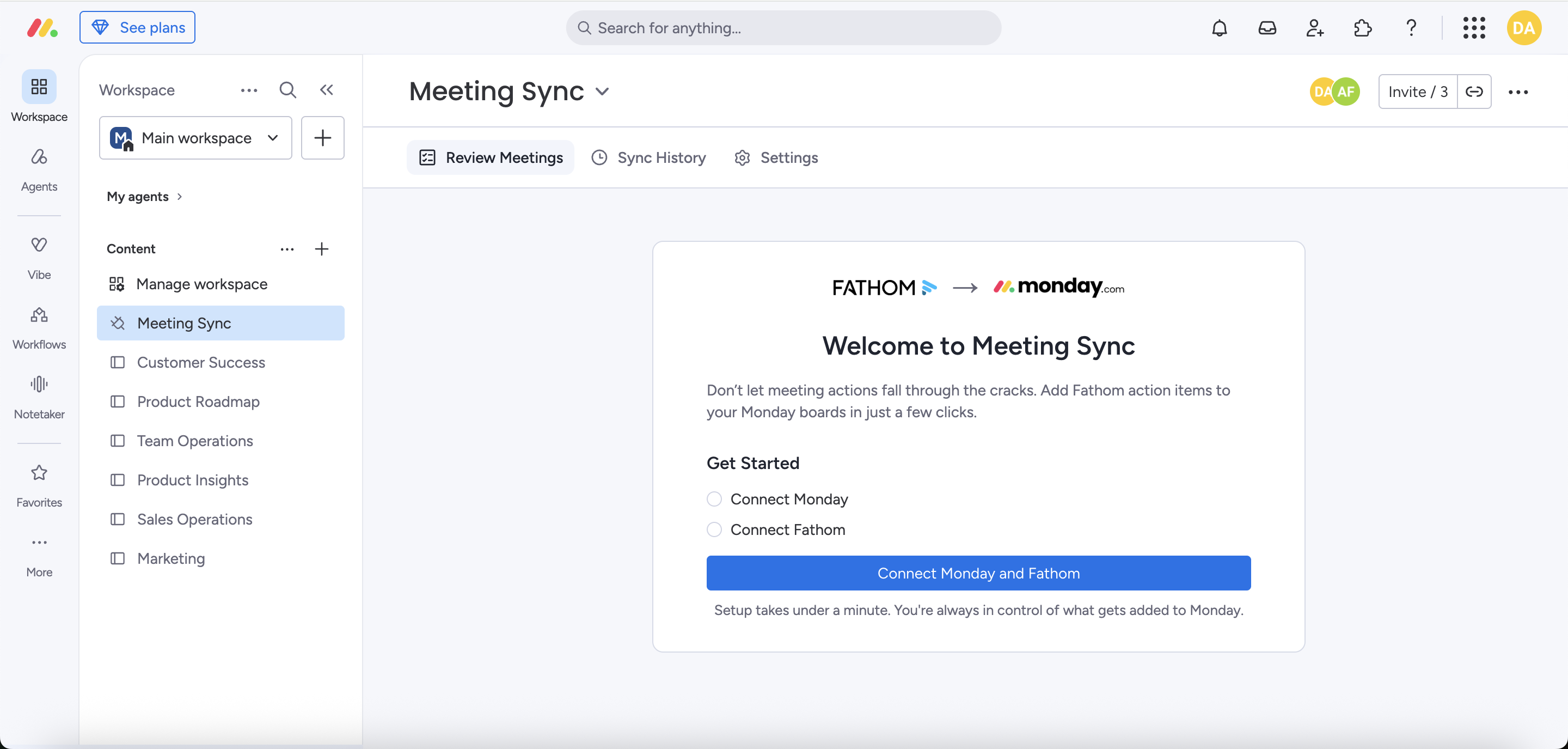
2. Connect your accounts
Meeting Sync needs access to both monday.com and Fathom to successfully add Fathom action items to your desired monday board.
Connect Monday and Fathom
Click Connect Monday and Fathom and you will be guided through the setup process.
If you are not already signed into Fathom, you will be prompted to sign into your account.
You'll automatically return to Meeting Sync when the connection setup is complete.
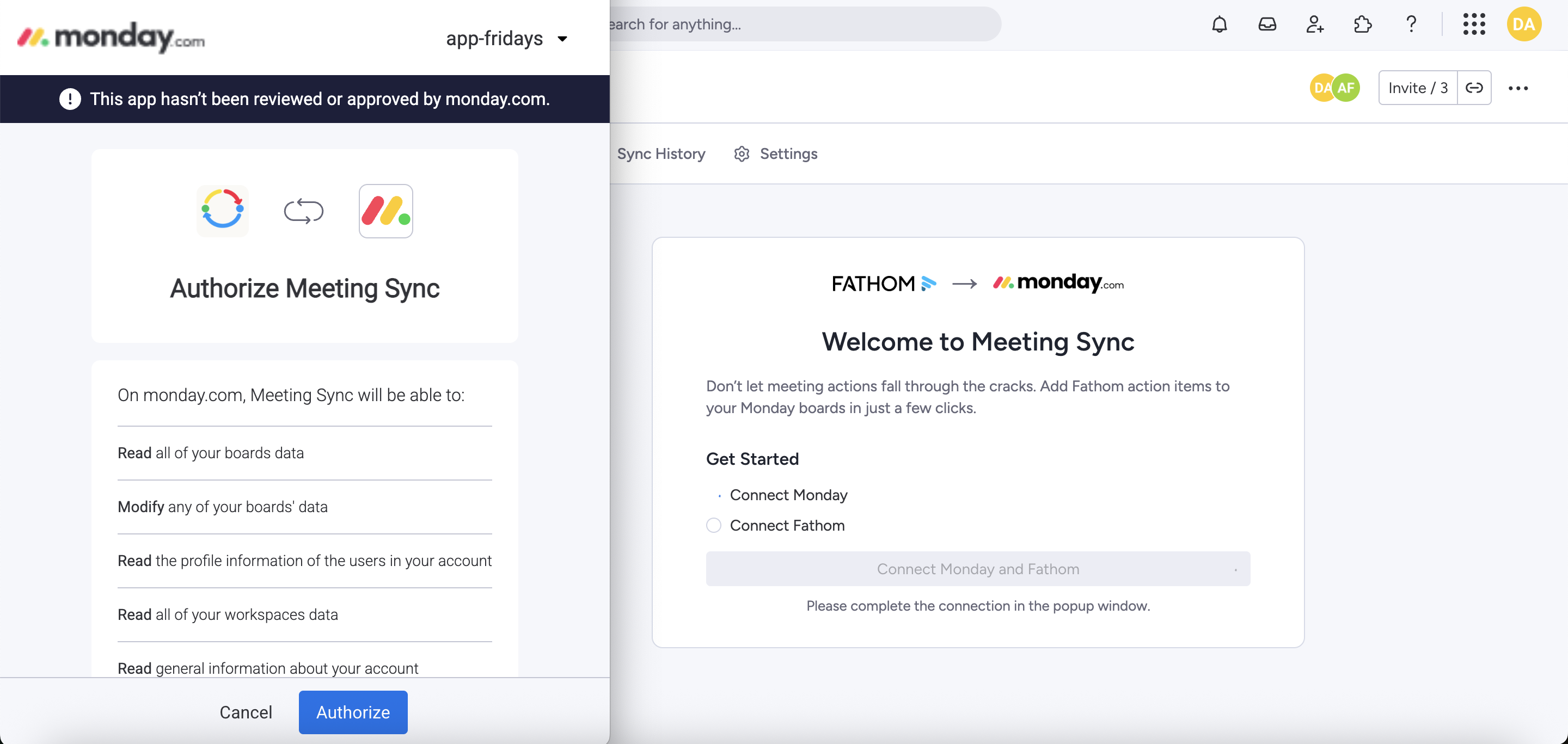
You only need to complete this setup once. You can manage your connections later from Settings.
3. Import your recent meetings
Once your accounts are connected, Meeting Sync will show your five most recent Fathom meetings.
Choose which meetings you'd like to bring into Meeting Sync.
You can:
- Select all five meetings
- Select only the meetings you want
- Skip this step if you don't want to import any previous meetings
When you're ready, continue with the selected meetings.
Meeting Sync will import them so their action items are ready for you to review.
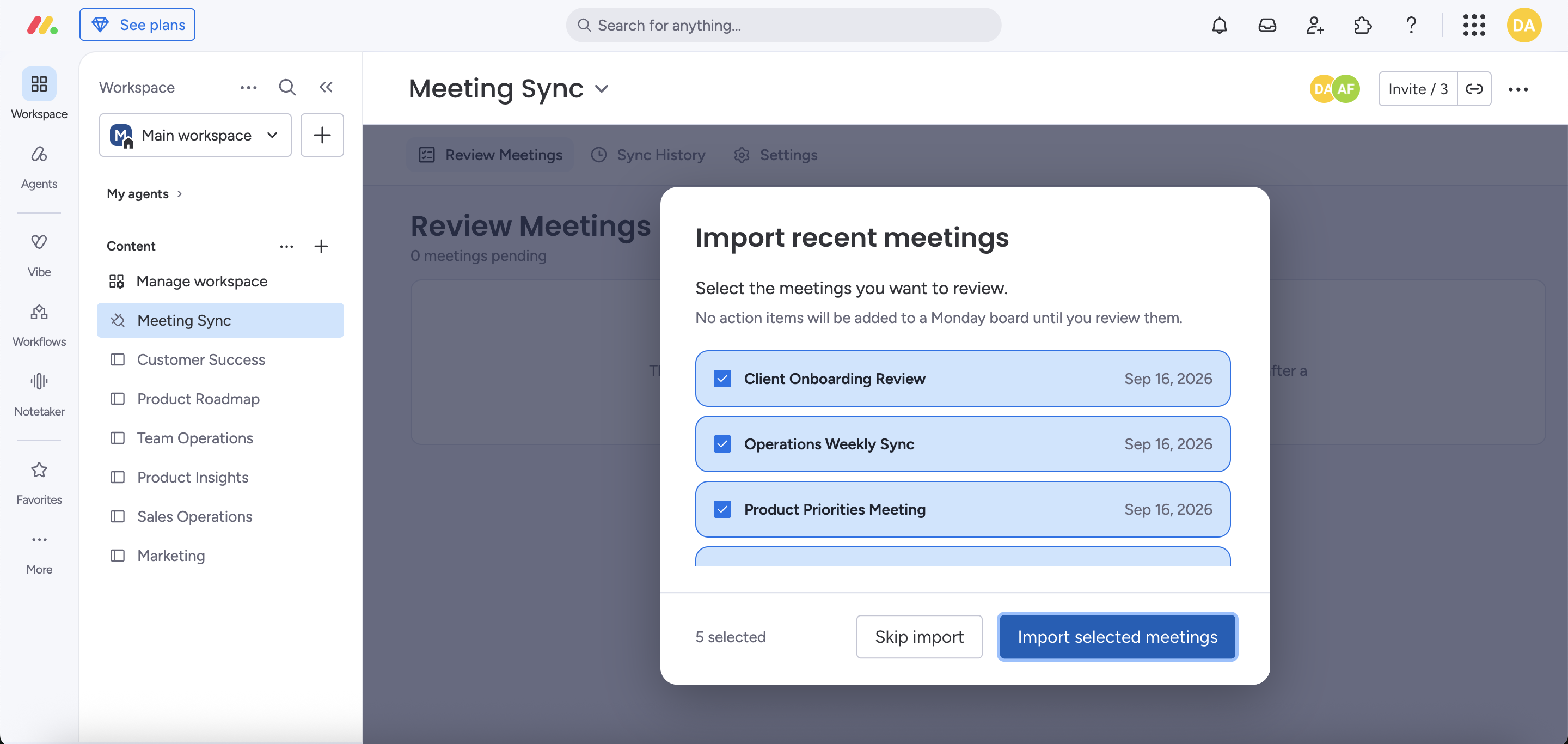
This step only appears during your first-time setup. Future meetings will appear in Meeting Sync automatically after they're processed by Fathom.
4. Review your meetings
Go to the Review Meetings screen to see meetings which are ready to review.
This includes any recent meetings you chose to import during setup, as well as new meetings that become available from Fathom.
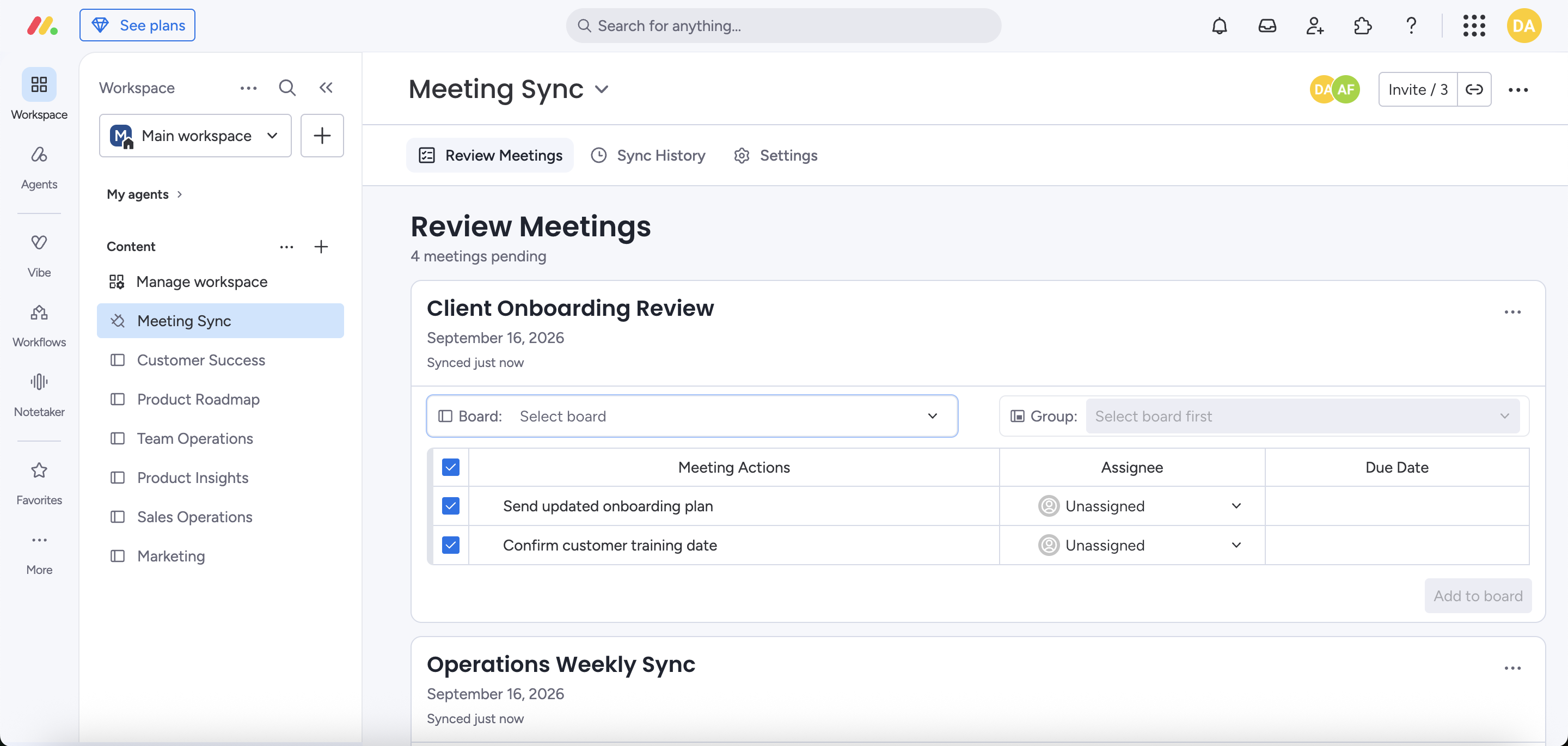
Meeting Sync shows the action items Fathom captured for that meeting so you can check them before anything is added to your monday board.
5. Choose where the tasks should go
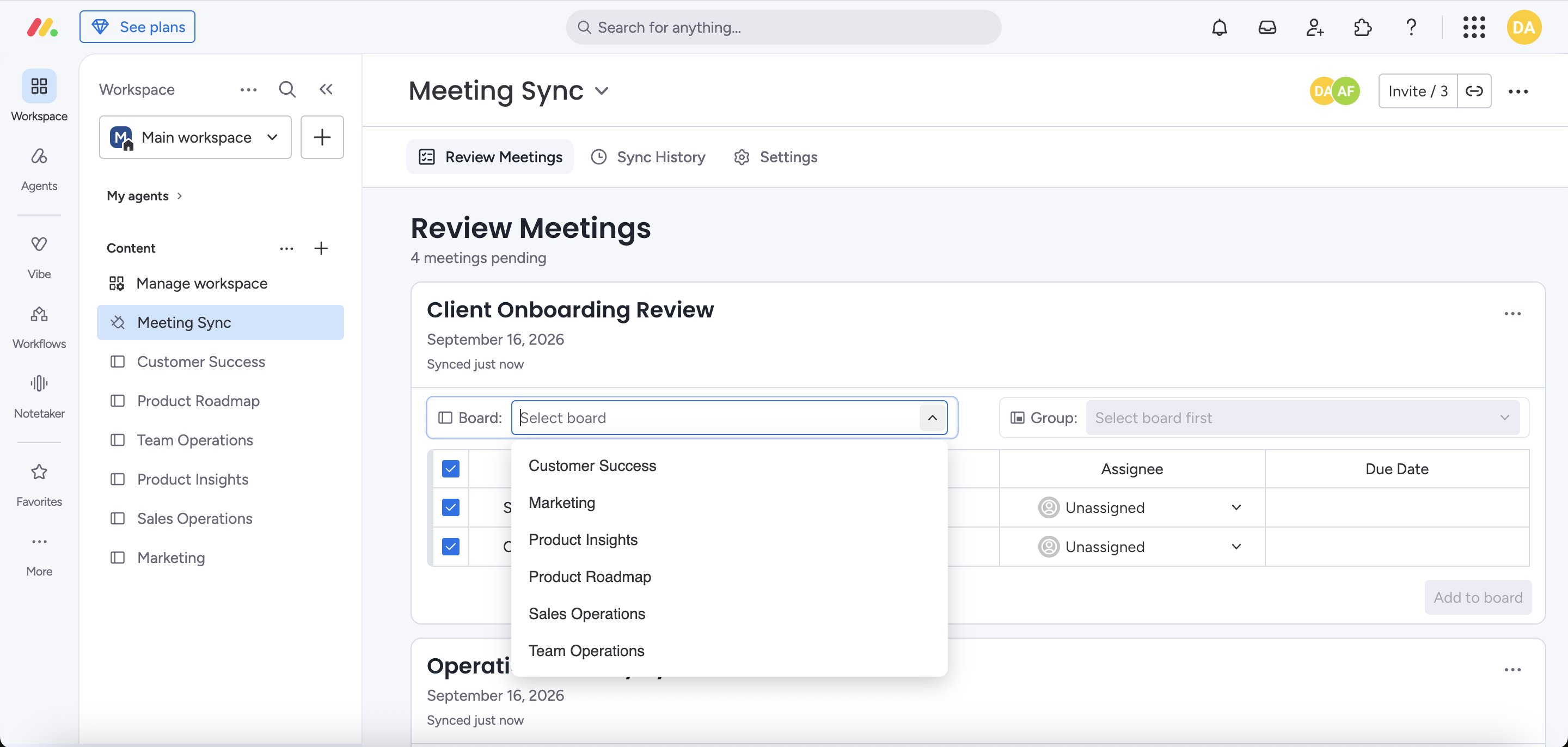
From the Review Meetings screen, choose the relevant monday board and group to add the meeting's action items.
Select:
- Board: the monday board where the tasks should be created
- Group: the group within that board
- Assignee: if you want the tasks assigned to someone
- Due Date: if the task has a due date
Only boards you have access to will appear.
6. Review the action items
Check the action items before adding them to your desired board.
You can edit the task or completely deselect it.
Meeting Sync ensures you're sending the right tasks to the right place rather than automatically creating everything captured during a meeting.
When everything looks right, sync the meeting by clicking “Add to board”.
Meeting Sync creates the action items as tasks in the selected monday board.
That's it. You've completed your first sync!
Using Meeting Sync
Once setup is complete, your normal workflow is simple:
- Fathom records your meeting and generates action items.
- Fathom action items are automatically sent to Meeting Sync.
- Review meeting action items in Meeting Sync.
- Choose the destination board, group, assignee and due date.
- Click Add to board.
You stay in control of what gets added and where it goes.
Review Meetings
The Review Meetings screen is your main workspace.
New meetings appear here after Fathom has completed processing them and generating the action items.
Choose the relevant monday board and group to add the action items to. You can also select and edit action items here, assign the task to a team member and set a due date.
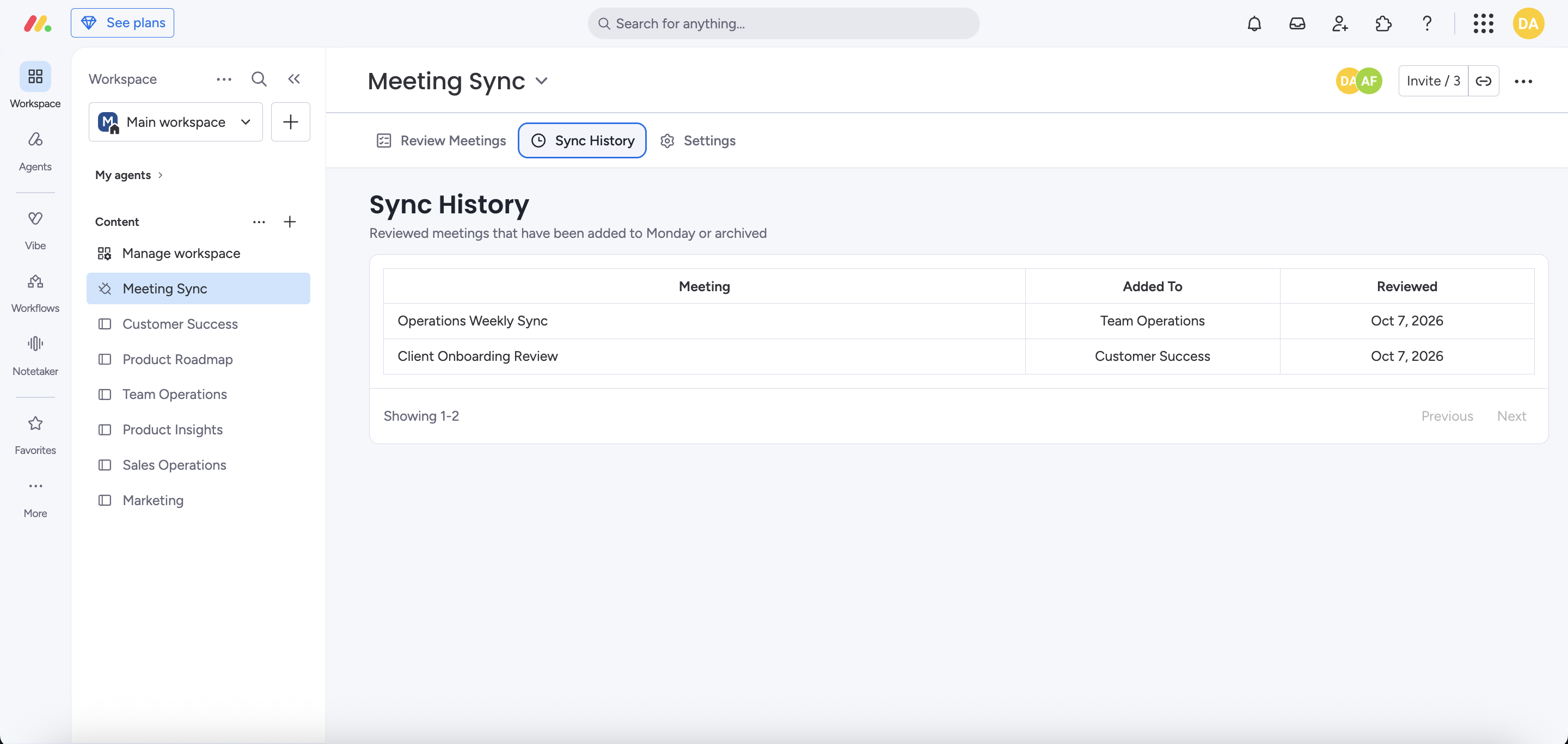
After a meeting has been successfully processed (added to a board or archived), it disappears from the Review Meetings queue. All processed meetings are stored in the Sync History tab.
Sync History
Use Sync History to see meetings you've already processed.
This is useful if you want to confirm that a meeting was added to a monday board or if it was archived.
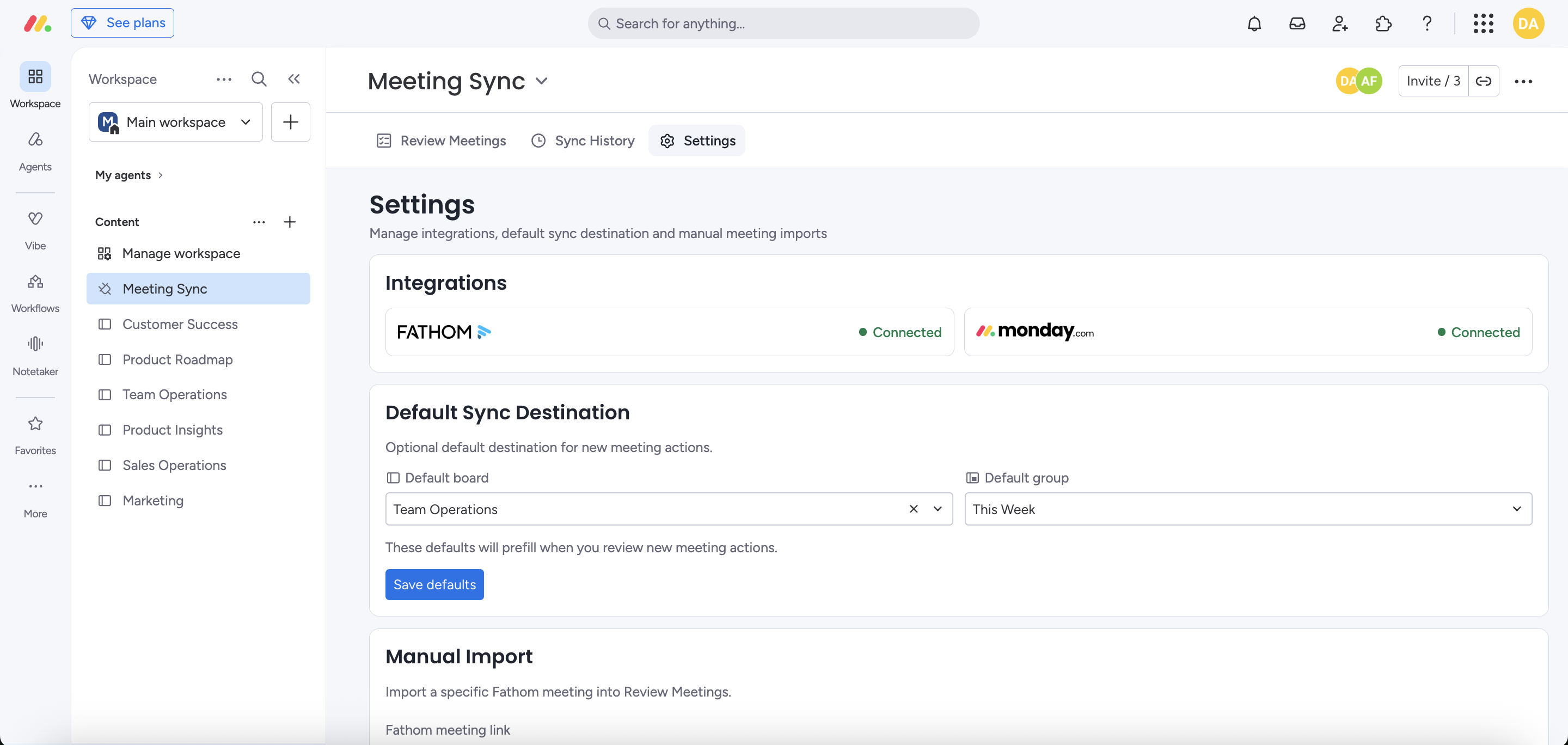
Set a default destination
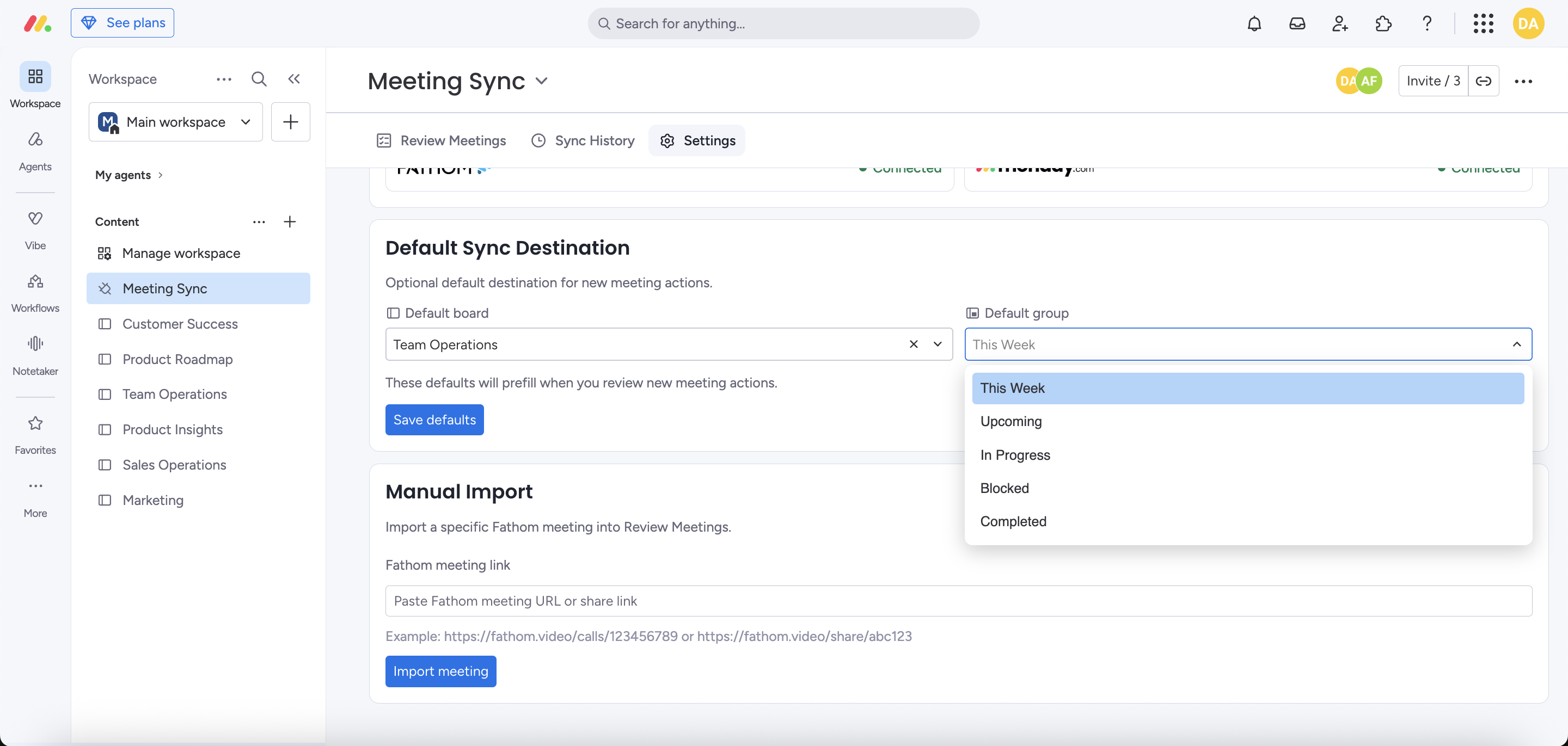
If you regularly send tasks to the same monday board and group, you can save a default destination.
Go to:
Settings → Default Sync Destination
Choose your preferred board and group, then save your changes.
Meeting Sync will preselect this destination when you review future meetings. You can still change it for an individual meeting before syncing.
Setting a default destination is optional, but it can make repeat syncing faster.
Import a meeting manually
If a Fathom meeting doesn't appear automatically or you want to import an older meeting, you can import it using its Fathom share link.
Go to:
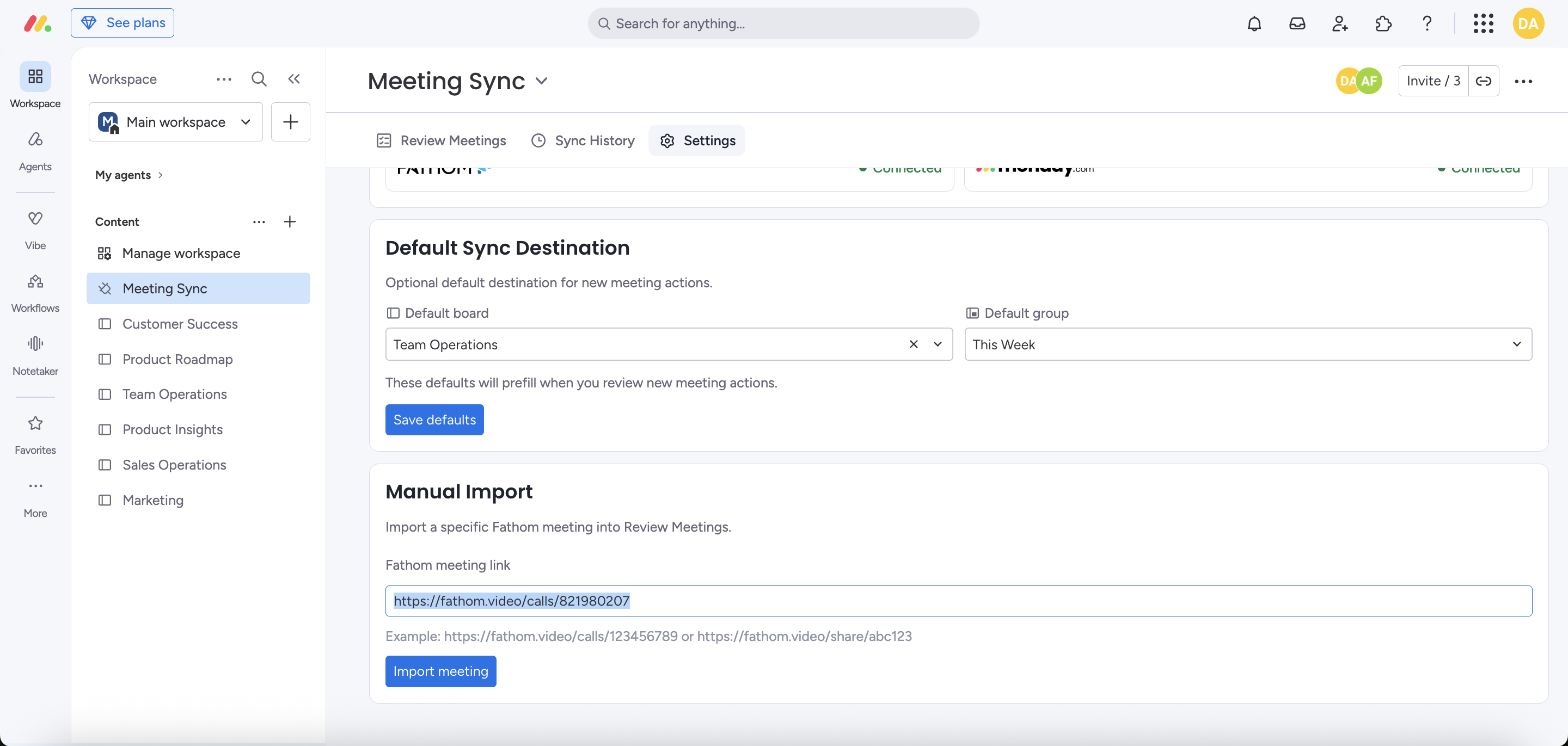
Settings → Manual Import
Paste the Fathom meeting share link and select Import meeting.
If the meeting is available to your connected Fathom account, Meeting Sync will retrieve it and add it to your review queue in the Review Meetings screen.
Where do I find the Fathom share link?
Go to Fathom and open the desired meeting, click the Share button and then click the Copy Link button in the share pop up. It typically looks like: https://fathom.video/share/abc123
You can also copy the meeting URL from your browser. It typically looks like: https://fathom.video/calls/123456789
Paste that link directly into Manual Import in Meeting Sync.
Manage your connected accounts
You can view or reconnect your integrations from:
Settings → Integrations
Meeting Sync requires both monday.com and Fathom to be connected to sync meeting action items.
If one of your connections stops working, return here and reconnect the affected account.
Troubleshooting
My meeting isn't appearing
First, check that:
- The meeting has finished.
- The meeting is available in your connected Fathom account.
- Fathom has finished processing the meeting. It can take up to 10 minutes for Fathom to process a meeting (but usually takes 2-3 mins).
- The meeting contains action items.
- Your Fathom connection is still active (check Settings).
If the meeting still doesn't appear, try importing it from Settings → Manual Import using the Fathom share link.
I can't see a specific monday board
Meeting Sync only shows monday boards available to your monday.com account.
If a board isn't listed:
- Confirm that you have access to the board in monday.com.
- Refresh Meeting Sync.
- If necessary, reconnect monday.com from Settings → Integrations (you will see an error).
I can't see the group I want
First select the correct monday board.
Meeting Sync then loads the groups belonging to that board. If the group still doesn't appear, confirm that it still exists in monday.com and refresh Meeting Sync.
My Fathom connection isn't working
Go to:
Settings → Integrations (you will see an error)
Reconnect Fathom and complete the authorization process again.
Then return to the Review Meetings screen.
My monday connection isn't working
Go to:
Settings → Integrations (you will see an error)
Reconnect monday.com and approve the requested permissions.
Then return to the Review Meetings screen.
Frequently Asked Questions
No. Meeting Sync brings your Fathom action items into a review step first. You decide where they should go before they're added to a specific monday board.
This helps prevent unnecessary or incorrectly routed tasks from being created automatically.
No.
You can import all five, select only the meetings you want, or skip the import entirely.
This only affects the recent meetings offered during your first-time setup. New Fathom meetings will continue to appear in Meeting Sync automatically.
No.
You can choose a board and group while reviewing each meeting.
If you frequently use the same destination, you can optionally save one under Settings → Default Sync Destination.
Yes.
A saved default simply preselects a destination. You can change it before syncing a meeting.
Yes.
Open Settings → Manual Import and paste the meeting's Fathom share link.
The meeting must be available to the Fathom account you've connected to Meeting Sync.
Open Sync History.
Yes, reach out to our support team and we can assist you with this.
Need Help?
If you're having trouble setting up or using Meeting Sync, contact us at [email protected]